
The Cattleman's Resource, Inc.
Contact Us
  • Home
  • About Us
  • OrderXpress Program
    • Overview
    • Order-Buyers & Dealers
    • Stockers
    • Backgrounders
    • Feedyards
    • Contracts
  • Blog
  • Links
  • Contact Us
  • Customer Center
    • Dealers / Order-Buyers
    • Stockers
    • Backgrounding / Feeding
    • Contracts

Internet Explorer Security Issue

5/22/2014

0 Comments

 
Picture
Do you, your family and friends, or people who work at your company click on the iconic big, blue  e  to access the internet?  If so, everyone who uses this Internet Explorer may be putting their privacy at risk.

Last April, a security glitch that allowed data thieves using a network computer to get around security protections and access personal information was discovered 
within Internet Explorer 6 through Internet Explorer 11.  This issue
 caused the Department of Homeland Security to advise users not to use the browser until the problem was resolved.

Microsoft has fixed this security glitch in Internet Explorer.

Most users will not have to take any action as the fix will be downloaded automatically, but customers who haven’t enabled automatic updates are encouraged to apply the update manually as quickly as possible.


To manually install an update, you must access your computer's control panel and choose the System & Security option.  Click on Windows Update and follow the instructions to install any new updates.  It is highly reccommended that you turn automatic updates back on, so future issues are addressed as quickly as possible.

The security glitch potentially gave data thieves using a networked computer the same level of access to personal information as the legitimate user.

Web users who are still using Windows XP were especially vulnerable.  Even though this IE security issue has been taken care of, Microsoft is encouraging Windows XP users to upgrade to Windows 7 or Windows 8.1, as they are no longer supporting or updating the system.  


Microsoft says, “Just because this update is out now doesn’t mean you should stop thinking about getting off Windows XP and moving to a newer version of Windows and the latest version of Internet Explorer.  Our modern operating systems provide more safety and security than ever before.  The latest version of Internet Explorer has increased support for modern web standards, better performance, and expanded the ability to deliver an immersive experience from within the browser. In other words, cool stuff that you need even if you didn’t know you need it. And when you turn on auto update, we make sure your computer and your browser get better all the time.”
0 Comments

Windows 8.1 Update - A How-To Guide & Feature List

3/13/2014

0 Comments

 
Many Windows users were intimidated by the newest operating system, Windows 8.  It seemed as though everyone could find new features in which they were not comfortable with.  Thankfully, Microsoft listened to their consumers’ critiques, which resulted in the new Windows 8.1 update that was released last fall.

We recently downloaded and installed the update and decided to create a how-to guide for those who may not be as computer savvy.  We have also included a list of the latest features integrated in the update, as well as an account of our own personal experience while downloading and installing it.


How to Install the Windows 8.1 Update

The first thing you will need to do is make sure your system is completely up to date.  Windows 8 does a pretty good job of forcing updates on you or installing them when you aren’t busy, but if you’re coming from a clean install or you haven’t had your machine on in a while you’ll need the latest updates before the Microsoft Store will show you the path to 8.1.

Head to your Control Panel and go to Windows Updates.  Install updates if you have them waiting to be installed.  Your PC will likely reboot if you have updates waiting. If you don’t have anything waiting, just close this window.

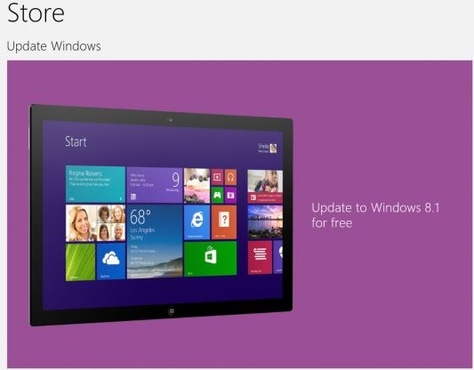
Now, head to the start page and open the Microsoft Store.  In the Featured Apps spot you should now see a big icon that is prompting you to upgrade to Windows 8.1.  This is a free upgrade.

Picture
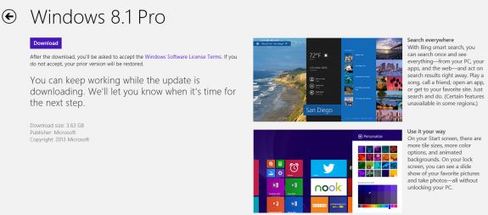
Microsoft’s information page for Windows 8.1 should now appear.  It will explain that the system update will download in the background, and that you can keep working while the upgrade downloads.  This file is 3.63GB, so how fast it downloads will depend on your internet connection.  We let our laptop download the update overnight.

If you’re ready to go, click the download button in the top right and you’ll be taken to the download page.  If you’re on a portable device, now is a great time to make sure you are connected to power.  Finally, if you have some things you need to finish up on your computer, you can close this and go back to what you were doing during the download process.
Picture
Once the file has downloaded, the PC will reboot and start the update process. Depending on your setup, the PC may reboot more than once as the upgrade is applied.  You’ll see the same full screen messages in plain white text with a rotating color background that happened when you first installed Windows 8 when the process reaches completion.

When our update was finished installing, the screen of our laptop went black.  We had to manually shut off and restart our computer.

You may be asked to sign back in to your Microsoft account or to select your color preferences again, but these are signs that Windows 8.1 has been successfully installed.  When the Start Page reappears, you have reached the end of the download with your documents and applications intact.

New Features in Windows 8.1

• The Start Button Returns - One of the most confusing changes in Windows 8 was the removal of the Start menu. In fact, the Start button was completely gone, although there was an invisible clickable area where it used to be. Windows 8.1 brings back the Start button, but stops short of resurrecting the menu. Clicking on the button opens the Windows 8.1 Start screen, but a right click does give you access to some common functions like the control panel, task manager and the ability to shut down or restart the computer.
Picture
• Boot to Desktop - Users that don’t use touch screens with Windows weren’t too pleased with Windows 8’s insistence on booting into the revamped, tile-based Start screen UI. In 8.1 Microsoft has offered a compromise of sorts.  You will have the option to boot directly to the desktop.

• More Lock Screen and Start Screen Options - Microsoft already had picture passwords, but now that feature has been expanded to allow multiple images to be pulled from the local storage.  This effectively makes the Lock screen into a digital photo frame.  You’ll also be able to capture pictures with the device’s camera, or answer Skype calls, without unlocking first.  The Start screen now has more tile sizes and background colors, as well.

Picture
• The Windows Store - The new Windows Store UI is cleaner and has larger images of the apps.  Currently installed apps can also auto-update in the background. Hopefully this gets developers more excited about making things for Windows 8.

• Extensive SkyDrive Integration - Perhaps the biggest and best change in Windows 8.1 is extensive, all-inclusive SkyDrive integration.  SkyDrive is a personal cloud storage service from Microsoft that enables customers to store, synchronize and access their files across Windows PC and Mac OS X computers and laptops as well as mobile devices like smartphones and tablets, including Windows Phone 7 and 8 devices and Apple iOS-powered iPhones and iPads.  Now, when you set up Windows 8.1, you will be prompted to turn on SkyDrive — and by doing so, SkyDrive will be integrated right into Explorer.

• Better Search - For whatever reason, Microsoft didn’t include true universal search in Windows 8.  In Windows 8.1, searching the device will pull up apps, local and SkyDrive files, and settings.  There is also a Bing Internet Search integration.  All you have to do to search is simply start typing while on the Start screen.  Overall, the entire search and All Apps view experience has been significantly rearranged to help out mouse-and-keyboard users.

0 Comments
    Picture

    Articles

    • Are We Ready For Autonomous Tractors?
    • Controlling Horn Flies On Cattle
    • New Standalone OXE Modules
    • Rare Quadruplet Calves Born In Texas
    • Pet CPR
    • Where's The Beef? Everywhere!
    • The $110 Cologne For Cows
    • Comparing Cloud Storage
    • Pull A Post Without A Tractor
    • Bextra Bale       Feeders
    • Internet Explorer Security Issue
    • Newest Additions to the Farm
    • Windows 8.1 Update - A How-To Guide
    • Lunch Time     Farming
    • Why You Need Online Backup Software
    • Music Spotlight:     Rusty Rierson
    • Grass Isn't the Only Thing that's Greener!
    • Important Tax Figures for 2014
    • Scorecard of Key Expired Tax Breaks
    • How to Link Facebook to Twitter
    • How to Use Twitter for Business
    • Create a Website Yourself
    • #Cattle #Hashtag? What's That?
    • Create A Business Facebook Page
    • Why Read Our Newsletter?
    • Why Use Facebook for Business?

    Archives

    July 2015
    May 2015
    February 2015
    December 2014
    October 2014
    August 2014
    May 2014
    March 2014
    February 2014
    January 2014
    December 2013
    October 2013
    September 2013

    Categories

    All
    Accounting
    Business
    Cattle
    Do It Yourself
    Facebook
    Farming
    Hashtags
    Just For Fun
    Music
    Our Pictures
    Social Media
    Technology
    Twitter
    Updates
    Websites
    Weebly
    Windows

    RSS Feed

      Have An Article Suggestion?

    Submit
  Copyright © 2015 by The Cattleman's Resource, Inc.    |    5946 Highway 115, Pocahontas, AR 72455    |    870-892-0021